Setting up Android Debug Bridge (ADB) on Windows Subsystem for Linux 2 (WSL2) is essential for efficient mobile penetration testing. This guide explains how to configure ADB to work inside WSL2, whether via USB or Wi-Fi.
Why Use ADB in WSL2 Instead of Windows Host?
While ADB can run on Windows, for penetration testing, using it inside WSL2 is strongly recommended for several reasons:
- Linux tools compatibility: Many pentesting tools (such as Frida, Objection, and custom bash scripts) require or expect a Linux environment.
- Custom Scripting and Automation: Automation for tasks like pulling apk, device interaction, payload deployment, and exploits is significantly easier using Bash or Python under Linux.
In short, running ADB inside WSL2 offers a cleaner, faster, and more reliable setup for mobile security assessments.
Prerequisites
- Android device with Developer Options and USB Debugging enabled
- WSL2 installed (Ubuntu, Kali, or others)
- OpenSSH Server installed on WSL2
Installing ADB
1. On Windows (for initial setup only)
- Download Android SDK Platform Tools
- Extract the downloaded ZIP file to a convenient folder, such as
C:\Users\YourName\Documents\platform-tools. - (Optional) Add the
platform-toolsfolder to your systemPATHvariable for easier access via any terminal.
2. On Ubuntu (inside WSL2)
Install ADB inside your WSL2 Linux distribution:
sudo apt update
sudo apt install android-tools-adb android-tools-fastboot
Verify the installation:
adb versionConnecting Devices
Method 1: Wi-Fi Connection
Start the ADB server on Windows:
PS> ./adb start-server
* daemon not running; starting now at tcp:5037
* daemon started successfully
Enable TCP/IP mode on the device:
PS> ./adb tcpip 4444Find the android’s IP address (Settings > Wi-Fi > Advanced settings).
Connect to the android from WSL2:
bash> adb connect <device_ip>:4444
already connected to <device_ip>:4444
It will fail to connect when you use adb connect for the first time, you need to allow USB debugging first and check Always allow from this computer
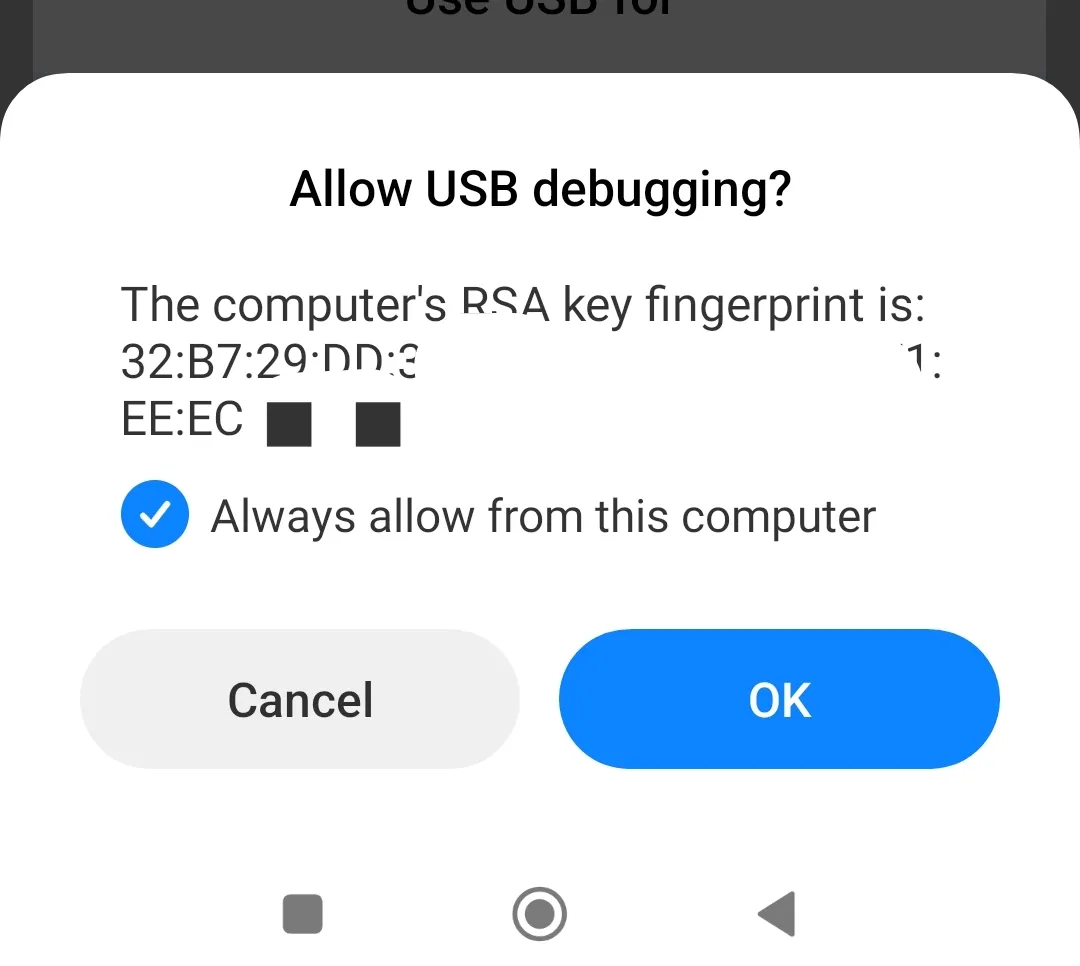
USB Debugging confirmation
Verify the connection:
bash> adb devices
List of devices attached
<device_ip>:4444 device
Method 2: USB Connection with SSH Tunneling
If Wi-Fi is not possible, USB can be used with a simple SSH tunnel.
Install and start OpenSSH Server in WSL2:
bash> sudo apt update
bash> sudo apt install openssh-server
bash> sudo service ssh restart
Start ADB server on windows host
PS> adb kill-server
PS> adb start-server
Create an SSH tunnel from Windows to WSL2:
ssh -R 0.0.0.0:5037:127.0.0.1:5037 username@wsl_ipThis SSH command creates a reverse tunnel between your Windows host machine and the WSL instance
ssh -R 0.0.0.0:5037:127.0.0.1:5037- This is the reverse port forwarding option:
-Rspecifies a reverse tunnel (remote port forwarding)0.0.0.0:5037means “listen on all network interfaces (0.0.0.0) on port 5037 on the remote machine (WSL)”127.0.0.1:5037means “forward that traffic to 127.0.0.1 (localhost) port 5037 on the client machine (Windows)”
If no devices appear when running adb devices, you may need to kill the ADB server first. This prevents WSL from creating its own server and ensures it connects to the Windows host server instead.
When you run adb devices in WSL before setting up the SSH tunnel, you’ll see:
bash> adb devices
* daemon not running; starting now at tcp:5037
* daemon started successfully
List of devices attached
This indicates WSL created its own ADB server rather than using the forwarded connection from Windows.
To fix this, always kill the ADB server in WSL before checking the connection:
bash> adb kill-server
bash> adb devices
This forces ADB to use the SSH tunnel to communicate with the Windows host where your devices are connected.
If everything is successful, you’ll see your connected devices listed:
List of devices attached
adxxxxxc device
With SSH tunneling set up between Windows and WSL, I can now run mobile pentesting tools or script directly in WSL while accessing Android devices connected to Windows. This eliminates the need to rewrite scripts for Windows, creating a more efficient workflow.
References:
- https://hackmd.io/@71347359dcc1df557b792ace6915d4cc/S1h28w6S5
- https://gist.github.com/jramiresbrito/846b9bebc560668eb2e7a97fb1cfc1ef
Originally published on Medium.